
Install guide
Steam Deck
Add Open Annihilation to Steam as a non-Steam game, with its own controller layout and artwork, and play it from Game Mode like any other game. Your Steam copy of Total Annihilation is found by itself.
- LCD and OLED
- SteamOS 3
- Linux 64-bit PC package
- About 15 minutes
ExperimentalSteam Deck support is experimental: it has been tried on one Deck so far. If something goes wrong, or works where this guide says it may not, tell us on Discord or in a GitHub issue, with the game's log.
1Switch to Desktop Mode
Press the STEAM button 1, choose Power, then Switch to Desktop 2. In Desktop Mode, STEAM and X together open the on-screen keyboard, and L2 or a press of the left trackpad is the right mouse button.
2Download and unzip it
In the browser, download the Linux 64-bit PC package. The ARM packages do not run on a Deck.
Open Annihilation 0.7.2 · Steam Deck2026-10-06
Release notes →Linux 64-bit PC package RecommendedExperimental
Includes Steam Input layouts and library artwork. Add it to Steam as a non-Steam game and play from Game Mode.
open-annihilation-v0.7.2-linux-x86_64.zip
- In Dolphin, the file manager, make a folder called
Applicationsin your home folder and move the zip there. - Right-click the zip 1, choose Extract, then Extract archive here 2.
This makes a folder holding the game, open-annihilation, and the steam-deck folder. Keep it where it is: Steam's shortcut points at it.
3Get the game data
Install Total Annihilation (app 298030, with Core Contingency and Battle Tactics) from your library as usual, on the Deck's storage or an SD card. Open Annihilation finds it 1 and plays the files Steam installed 2: you never start Total Annihilation itself or run it through Proton.

- Steam libraries, SD cards included
~/.local/share/Steam/steamapps/common/Total AnnihilationFound - Heroic Games Launcher
~/Games/Heroic/…— - Lutris and Wine prefixes
~/Games/…— - Bottles
~/.var/app/com.usebottles.bottles/…—
Install GOG's Total Annihilation: Commander Pack with Heroic Games Launcher or Lutris, both in the Discover store in Desktop Mode. Open Annihilation finds a copy Heroic installed, and one in a Lutris or Wine prefix in ~/Games or in a Bottles bottle.
Copy the whole folder of an installed Total Annihilation, the one that holds totala1.hpi, to ~/Games/Total Annihilation on the Deck, with a USB stick or an SD card. The game does not look for a folder copied like this: choose it at the first start (step 7).
No copy yet? The free 1997 demo holds the first three Arm missions. Download Total Annihilation.exe (where, and how to check it), make a folder such as TA Demo in your home folder, and put the file in it 1. You never run it: Open Annihilation only reads the game data packed inside.
4Add it to Steam
- Open Steam on the desktop, choose Games, then Add a Non-Steam Game to My Library… 1.
- Click Browse… 2, go to the game's folder and choose
open-annihilation3; if it is not listed, set File type to All Files first. Then choose Add Selected Programs 4.
Or right-click open-annihilation in Dolphin and choose Add to Steam.
Select the programs to add to your library
In Steam's library, right-click the new entry, named after the file, and choose Properties. Rename it Open Annihilation 1: Steam shares community layouts by this name. Leave Launch Options empty 2, and leave Force the use of a specific Steam Play compatibility tool off 3: Open Annihilation is a native Linux program, and Proton is for Windows programs.
5Install the controller layouts
The steam-deck folder holds two Steam Input templates. Open Konsole, the terminal, from the application launcher (under System), and copy them to where Steam looks for templates:
(deck@steamdeck ~)$ cd ~/Applications/open-annihilation-v0.7.2-linux-x86_64(deck@steamdeck ~)$ mkdir -p ~/.steam/steam/controller_base/templates(deck@steamdeck ~)$ cp steam-deck/*.vdf ~/.steam/steam/controller_base/templates/
Steam reads the templates when it starts. Returning to Game Mode in step 7 restarts it.
6Add the artwork (optional)
The steam-deck/artwork folder holds Steam's library pictures, made from the Open Annihilation icon; none of them uses Total Annihilation's art. Without them Steam shows a plain tile. In Steam, still in Desktop Mode:
- Library picture: right-click the game, Manage › Set custom artwork,
portrait.png. - Banner and logo: on the game's page, right-click the banner: Set Custom Background with
hero.png, then Set Custom Logo withlogo.png. - Icon: in Properties, click the icon beside the name and choose
icon.png.


7Play in Game Mode
- Double-click Return to Gaming Mode on the desktop.
- Select Open Annihilation in the library, under Non-Steam, and open its controller settings 1.
- Choose the current layout, then Templates, and pick Open Annihilation. Then choose Play 2.
In the template list, Templates 1 holds both of the game's layouts: pick Open Annihilation 2. The other, keyboard and mouse, sends only the mouse and keys.
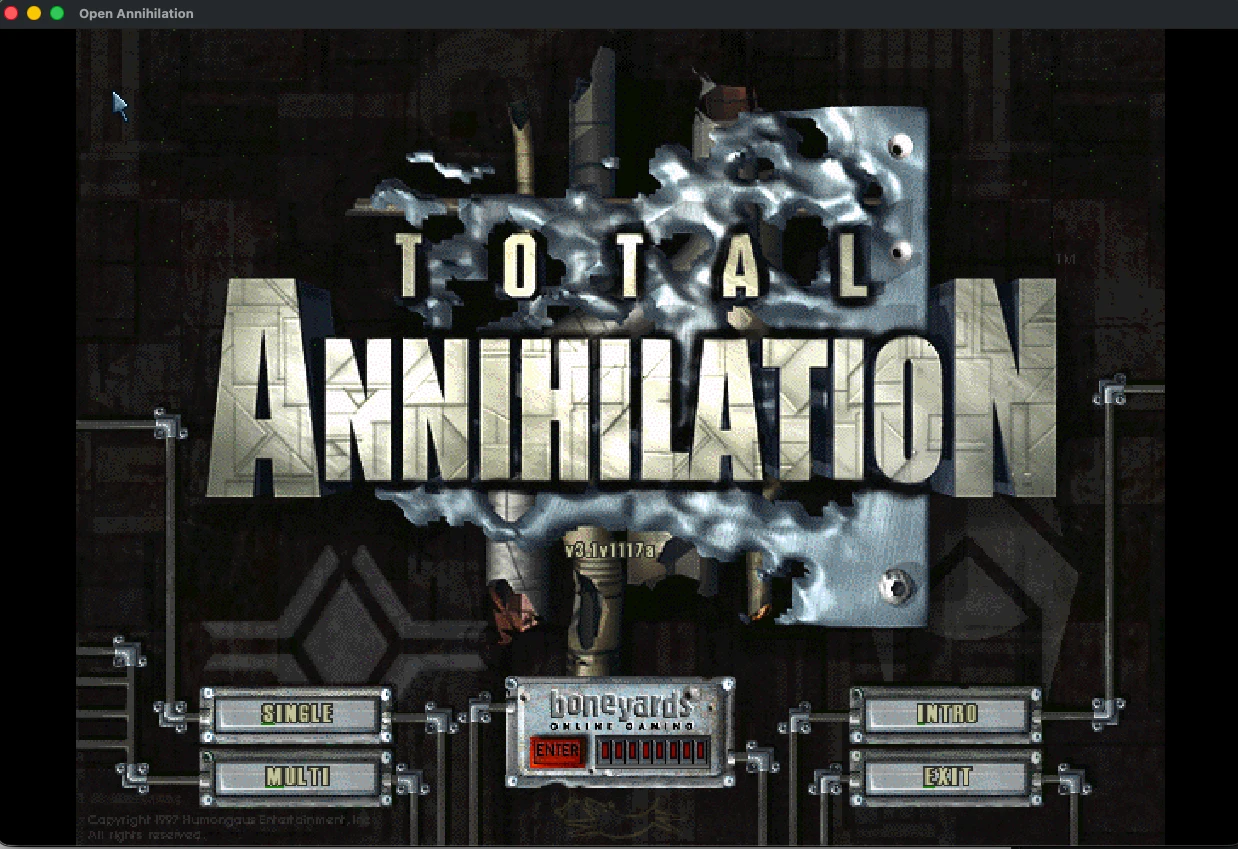
At its first start the game looks for Total Annihilation where Steam, Heroic, Lutris and Bottles put it. One usable copy: it plays it, says on the main menu where it found it, and remembers it. Several, or none: it asks in its own folder chooser, which works with the D-pad and A, the trackpad pointer or a finger: pick a copy found, browse to a folder, or choose the 1997 demo. To name the folder yourself, put --game-dir "/home/deck/Games/Total Annihilation" in the game's Launch Options.
✓You're in, Commander
When the main menu appears, the game has found your files. Pick a campaign, a skirmish or a network game.
Controls
With Steam Input on and the Open Annihilation template, the sticks and buttons reach the game as a gamepad's, the right trackpad is the mouse, and the four back grips work as the game's own: R4 QUEUE, L4 ADD, R5 FORCE and L5 groups.
| Input | Does |
|---|---|
| Right trackpad | The pointer; press for a left click |
| R2, L2 | The left and right mouse buttons |
| R1 | The order ring at the pointer |
| L1 | The build ring of the selected builder |
| Left stick, left trackpad | Scroll the map; L3 centres |
| Right stick | Zoom; a flick left or right turns the build page |
| A, B, X, Y | Click, clear, stop, every unit of the type |
| D-pad | Commander, next unit, next report, SELECT ▾ |
| View, Menu | Unit info (hold for game keys), the in-game menu |
The controller guide describes every input, the rings and the groups.
Frame rate, controls and the screen
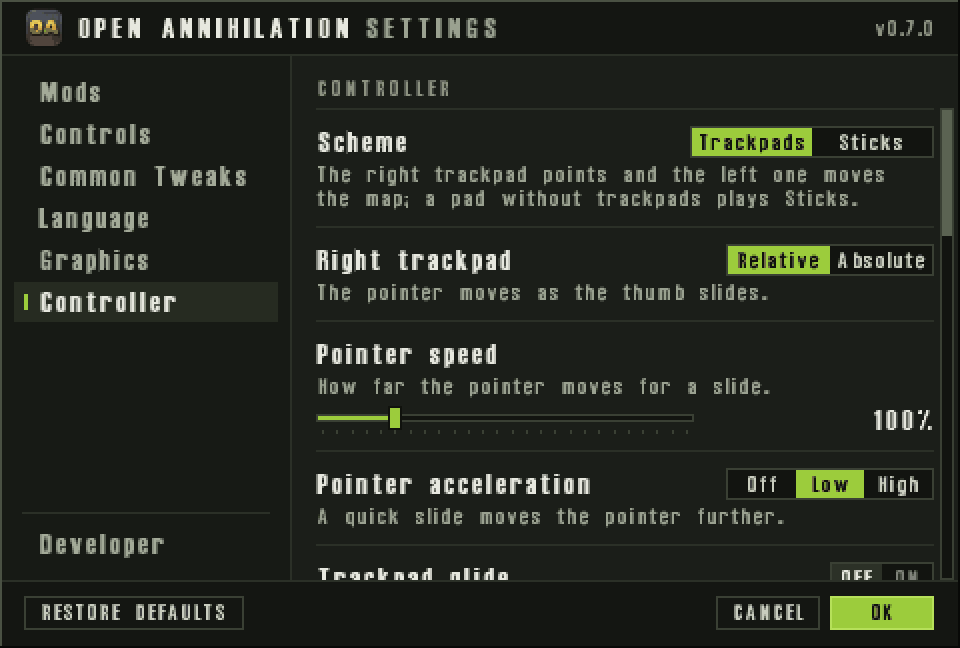
- The game starts with Maximum frame rate at the screen's rate, 60 on the LCD model and 90 on the OLED, and Control size at Larger. Both are ordinary settings, and Restore defaults brings the Deck's values back.
- Leave Screen size at Desktop: in Game Mode the window opens at 1280×800, and Steam's pointer stops short of a larger window's edges.
- For the touch controls, leave the touch screen on native touch in the controller settings, not the setting that turns touches into clicks.
- Steam's keyboard opens by itself when the game wants text; STEAM and X open it by hand.
- Start the game from Steam's library in Desktop Mode too: started from Dolphin, it gets no Open Annihilation layout.
Troubleshooting
The game does not start, or Dolphin opens it as a file
chmod +x open-annihilation once.Steam does not start the game
open-annihilation in the game's folder, and that no compatibility tool is forced.The templates are not listed
.vdf files are in ~/.steam/steam/controller_base/templates, then restart Steam, for example by switching to Desktop Mode and back. Failing that, use Steam's Gamepad with Mouse Trackpad and bind R4, R5, L4 and L5 to F13, F14, F15 and F16.It asks for Total Annihilation although it is installed
totala1.hpi. Choose it in the game's folder chooser, or name it with --game-dir.The pointer does not reach the right or lower edge
--resolution from the launch options.The controls act as a mouse and keys only
Logs and reporting a problem
The logs are in ~/.local/share/open-annihilation/logs; in Dolphin, Ctrl+H shows the hidden .local folder. The lines starting open-annihilation: window: and open-annihilation: gamepad opened: say most of what is needed. When you report a problem, send the newest log, say which Deck you have (LCD or OLED) and which template the game uses, and what happened.
Updating and removing
- To update, in Desktop Mode unzip the newer package into
Applicationsbeside the old one, then point the game's Target and Start In at the new folder, or add the new one to Steam and remove the old entry. Copy the newer templates as in step 5 too, and restart Steam. Your settings, saves and chosen folder are kept. - To remove, right-click the game in Steam, choose Manage › Remove non-Steam game from your library, and delete the game's folder and the two templates.
Other platforms
Something not as described? Discord · GitHub issues