
Install guide
iPhone & iPad
There is no App Store release: you build the app on your Mac with Xcode and install it on your own iPhone or iPad. On its first start it copies the game data from your own copy.
- iOS and iPadOS 15 or later
- A Mac with Xcode 26
- A free Apple ID works
- About 2 GB free on the device
1What you need
- A Mac with Xcode 26 or later, from the Mac App Store. Open Xcode once so it installs its components.
- An Apple ID, signed in under Xcode › Settings › Accounts. A free one works, but its apps stop opening after seven days and need building again; a paid Developer Program membership signs for a year.
- An iPhone or iPad with iOS or iPadOS 15 or later, and its cable, or paired with the Mac over Wi-Fi.
- Your Total Annihilation folder, the one with
totala1.hpi: about 1.1 GB with both expansions and the music. Where to find it on a Mac.
2Install the tools
Open Terminal and install Xcode's command line tools, then CMake and Ninja, for example with Homebrew. Python 3 comes with the command line tools.
$ xcode-select --install$ brew install cmake ninja
3Get the source
The first build also fetches and builds the libraries the game needs for iOS, once.
$ git clone https://github.com/open-annihilation/open-annihilation.git$ cd open-annihilation$ python3 tools/bootstrap_text_fonts.py --fonts-only
4Make the Xcode project
Find your team ID: in Xcode › Settings › Accounts, choose your Apple ID 1 and read the team's ID 2.
Then, from the open-annihilation folder, make the project. It opens in Xcode:
$ platforms/ios/scripts/xcode.sh --device --team A1B2C3D4E5 --openFor a test device, cmake -B build-ios-xcode -DOA_IOS_BUNDLED_GAME_DIR="$HOME/Games/Total Annihilation" builds your game folder into the app: about 1.1 GB larger, but it plays as soon as it is installed.
5Build and install
- Connect the iPhone or iPad and unlock it. The first time, tap Trust on the device.
- In Xcode's toolbar, choose the oa-game scheme 1 and your device 2.
- If Xcode says the app's identifier is not available, change Bundle Identifier under Signing & Capabilities to one of your own 4, such as
net.yourname.open-annihilation. - Choose Product › Run 3.
 oa-game›Commander’s iPhoneReady
6Allow the app on the device
The first time, the device refuses to open an app from your own team. On iOS and iPadOS 16 and later, turn on Developer Mode: Settings › Privacy & Security › Developer Mode 1, turn it on 2 and restart the device when it asks.
Then trust your developer profile: Settings › General › VPN & Device Management, choose your Apple ID under Developer App 1 and tap Trust 2. Now open Open Annihilation from the Home Screen.
7Add your game files
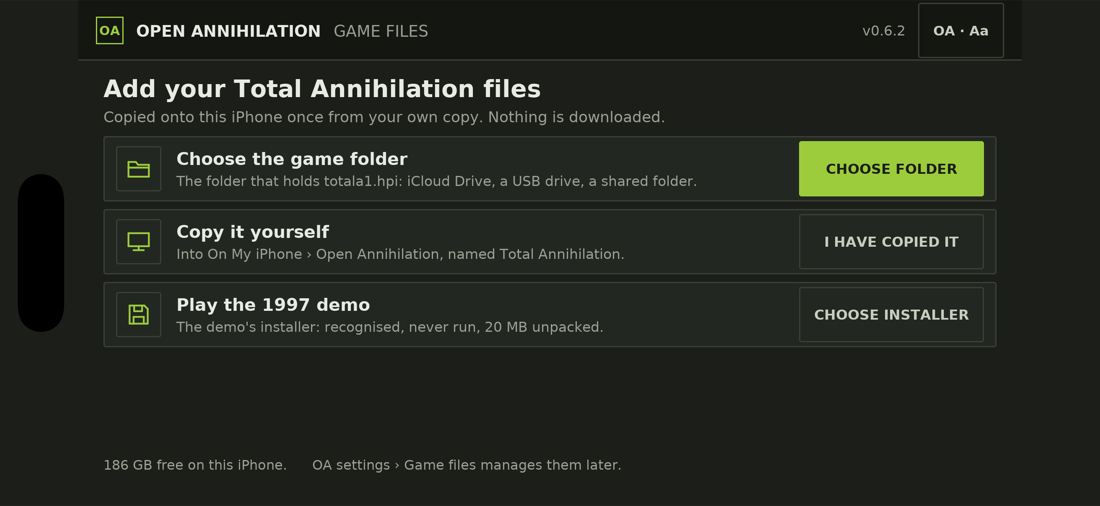
The first time you open it, the Game files screen offers three ways to bring your Total Annihilation files onto the device. Whichever you choose, the files are checked, and the app never closes for lack of them.
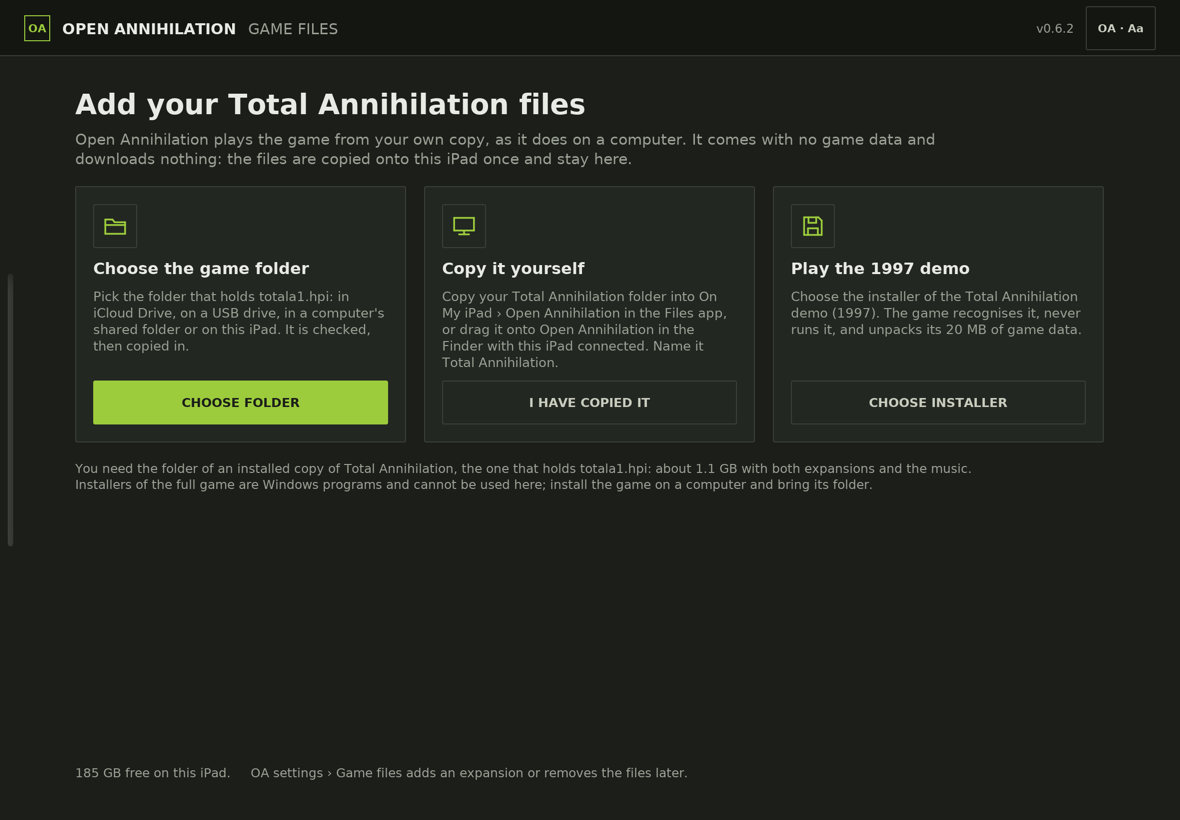
- Put your Total Annihilation folder where the device can reach it: iCloud Drive, a USB drive, a computer's shared folder (connect to it in the Files app first), or the device itself.
- Tap CHOOSE FOLDER, then Browse, find the folder, open it and tap Open. The app reads only names and sizes, so nothing downloads yet.
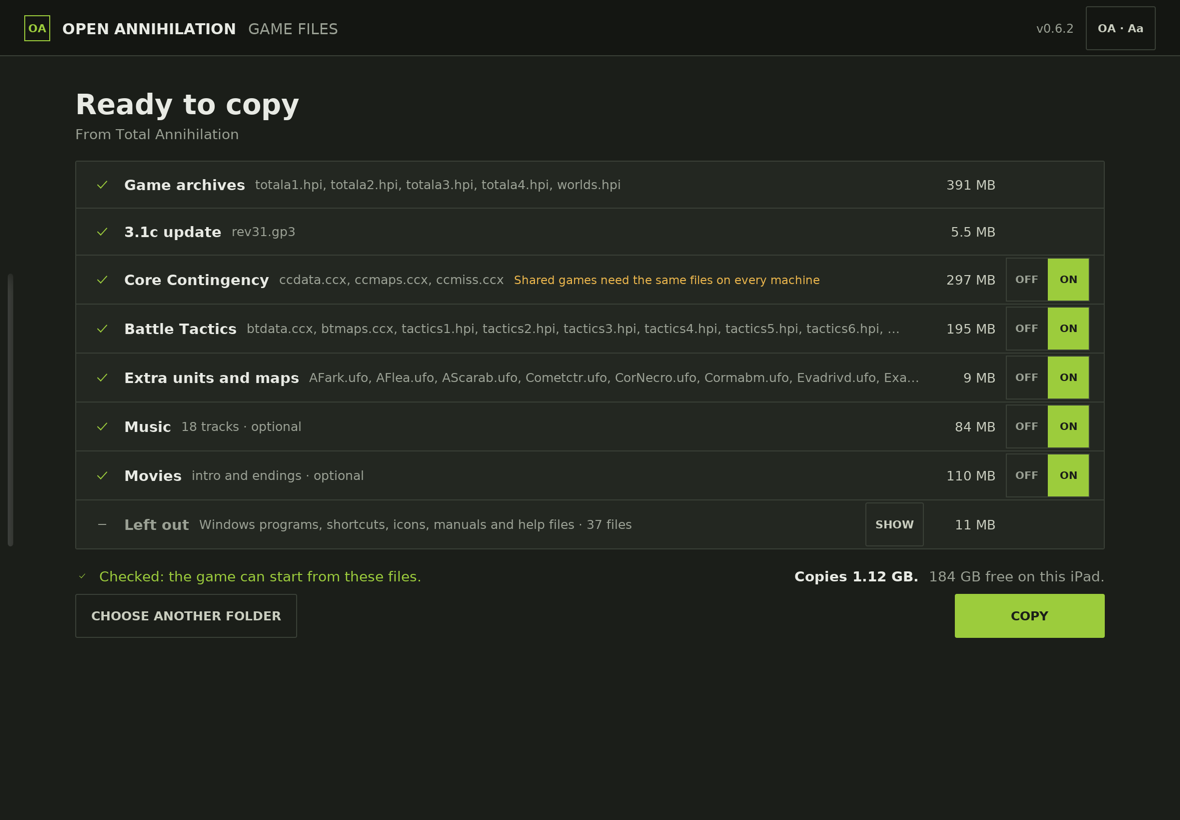
- Ready to copy shows what it found, with switches for the optional parts, what it leaves out, and the space the copy needs. Tap COPY.
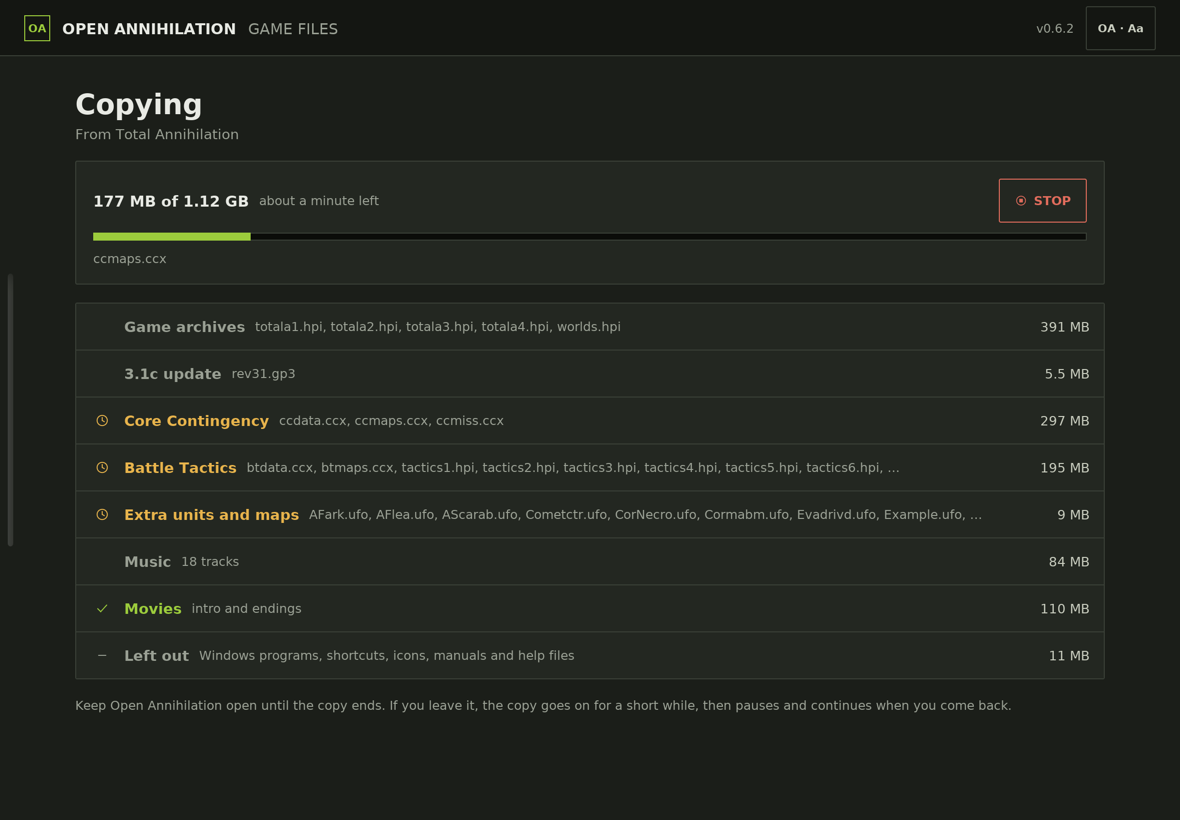
- The copy shows its progress, the time left and the file it is on. Keep the app open until it ends; if you leave, it pauses and continues when you come back. Files only in iCloud download as they are copied.
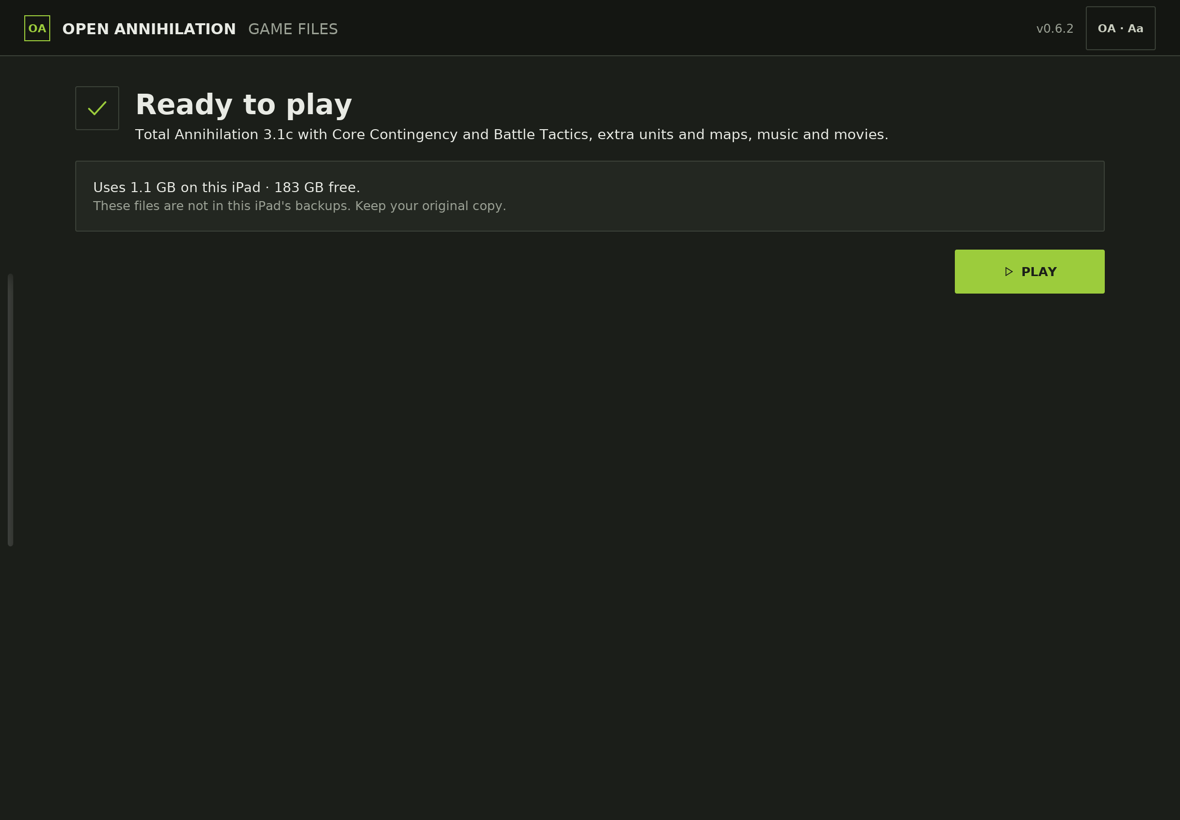
- The copy is checked with the game's own check, then Ready to play says what the game will play. Tap PLAY.
- With the Mac: connect the device, select it in the Finder sidebar, open the Files tab and drag your Total Annihilation folder onto Open Annihilation.
- On the device: in the Files app, copy the folder into On My iPhone (or iPad) › Open Annihilation.
Name the copied folder Total Annihilation, then tap I HAVE COPIED IT. If it has another name, the app finds it and offers to put it in place.
- Download the demo's installer, a 21.5 MB Windows program usually named
Total Annihilation.exe, on the device, for example in Safari, which saves it in Files › Downloads. - Tap CHOOSE INSTALLER, choose the file, then COPY.
The app recognises the installer by its checksum, never runs it, and unpacks its 20 MB of game data. Then tap PLAY.
8Play
Open Open Annihilation and turn the device on its side: the game is landscape only. The touch controls cover tapping to move, the build drawer, the order wheel on a long press and pinch to zoom; a keyboard, mouse or trackpad works as on a computer.
✓You're in, Commander
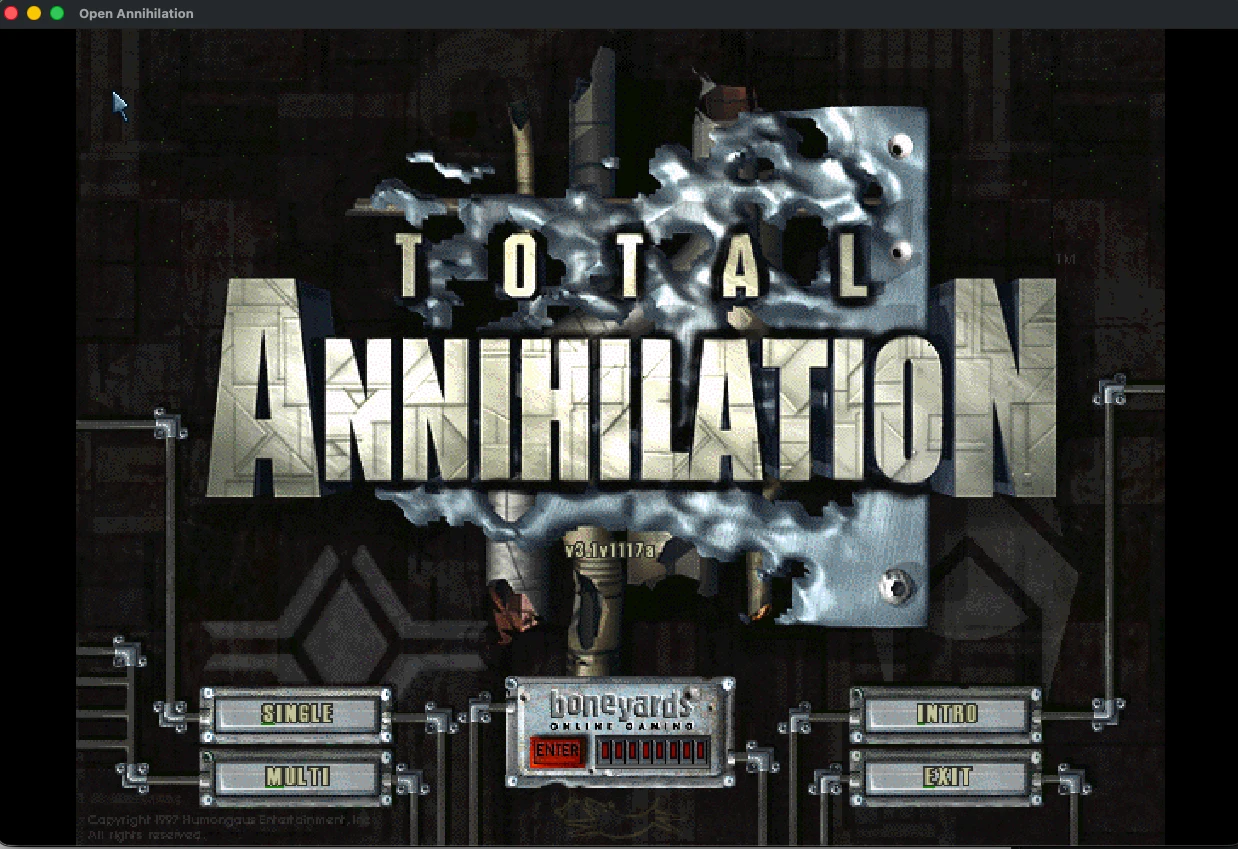
When the main menu appears, the game has found your files. Pick a campaign, a skirmish or a network game.
Managing the game files
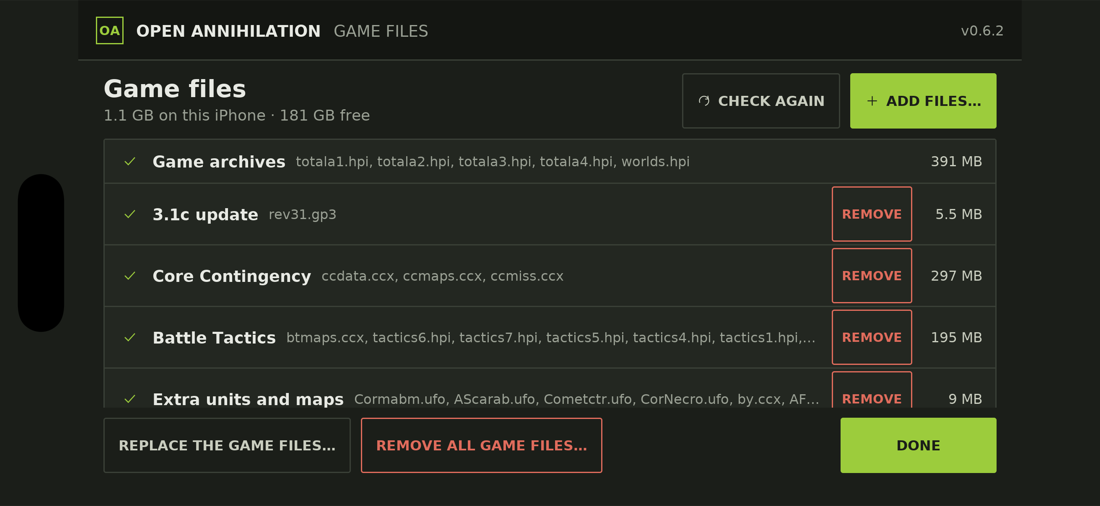
Open the OA settings from the main menu and choose Game files: what is installed, its size and the space free, whether the files go in device backups (off by default, since they would count about 1.1 GB against iCloud), and MANAGE…, which adds an expansion, maps or a mod, checks the files again, or removes or replaces them. Saved games and settings always stay.
Network games
The first time the game uses the network, iOS asks whether it may find and connect to devices on your local network: tap Allow, or turn it on later in Settings › Privacy & Security › Local Network. A build signed with a free Apple ID cannot search for games by broadcast: join by typing the host's address on the TCP/IP screen (a device's address is under Settings › Wi-Fi, the information button). A paid team can request Apple's multicast networking entitlement and build with --multicast-entitlement.
Troubleshooting
“Untrusted Developer”
The app stopped opening after a week
“This folder does not hold a Total Annihilation installation”
totala1.hpi.“Not enough space”
“The copy stopped”
No games appear when searching
Updating and removing
To update, run git pull in the open-annihilation folder and build and install again (step 5); your game files, saves and settings stay on the device. To remove the game, press and hold its icon and choose Remove App, which also removes the game files copied into it.
Other platforms
Something not as described? Discord · GitHub issues